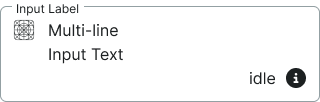
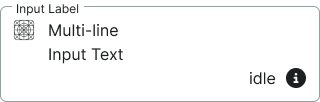
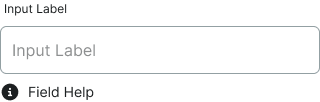
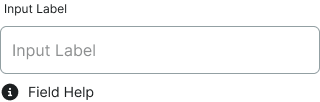
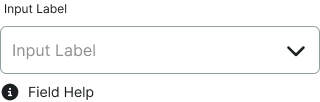
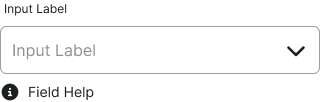
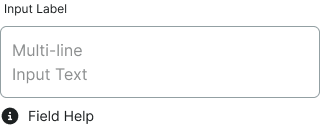
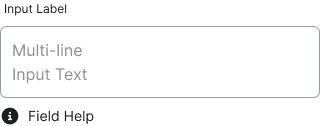
Outlined input field styling with border emphasis and integrated label positioning, providing strong visual definition and material design pattern support.
On this page
This documentation is a work in progress and may contain incomplete or outdated
information. If you have any feedback or suggestions, please open an issue on GitHub.
Different configurations and states available for outlined form components to accommodate various use cases, user interactions, and visual requirements. These variants provide flexibility in appearance, behavior, and functionality while maintaining design consistency.
Form Input
Individual outlined input elements that capture user data through different input methods and visual states. The outlined border provides strong visual definition with integrated label positioning.
Style Variants
Visual presentation modes that affect the input field's label positioning and overall appearance within the form interface. These variants determine the visual design approach and space utilization for different design contexts and user experience requirements.
Style variants are implemented as separate Figma components across multiple files to optimize performance. Each component has the same type, activity, size, and state variants.
Regular
Traditional input field styling with label positioned above the input area. Use for most form implementations requiring clear labeling, conventional form patterns, or when maintaining standard form design conventions with separate label and input areas.
Floating
Modern input field styling with animated floating label that moves when the field becomes active. Use for contemporary form interfaces, space-efficient designs, or when providing elegant label transitions that combine label and placeholder functionality.
Outline
Outlined input field styling with border emphasis and integrated label positioning. Use for forms requiring strong visual definition, material design patterns, or when field boundaries need clear emphasis within the interface.
Type Variants
Different input methods for collecting various types of user data, each optimized for specific content types and interaction patterns.
Text
Single-line input field for alphanumeric characters, passwords, and short text entries. Use for names, email addresses, phone numbers, and other concise data input.
Select
Dropdown menu allowing users to choose from predefined options. Use when presenting 4 or more mutually exclusive choices.
Date
Input field with date picker functionality for selecting dates. Provides calendar interface to ensure proper date format.
Textarea
Multi-line input field for longer text content and comments. Use for descriptions, feedback, messages, or any content requiring multiple lines.
Activity Variants
Visual states that indicate whether the input field contains user data or remains empty.
Active
Input field contains user-entered content with label in elevated position. Visual styling indicates populated state.
Inactive
Input field is empty with label in default position. Provides visual cues about expected input.
State Variants
Interactive states that affect user interaction capabilities and visual feedback based on current user activity and system conditions.
Idle
Default state when the input field is not being interacted with.
Disabled
Input field is non-interactive and cannot receive user input.
Focus
Input field is currently selected with emphasized border styling.
Error
Input field contains invalid data with error styling and messaging.
Success
Input field contains valid data that passed validation requirements. Success indicators provide positive feedback and reduce user anxiety.
Form Field
Complete form elements that combine outlined input components with labels, validation, and helper text for comprehensive user experience. These composite components provide proper accessibility, visual hierarchy, and contextual information necessary for effective form design and user guidance.
Type Variants
Different form field configurations based on the type of input component used, each maintaining consistent labeling, spacing, and helper text positioning while adapting to the specific requirements of the embedded input type.
Text
Complete form element including label, outlined input field, and optional helper text. Provides full context for single-line data entry with strong border definition and clear visual hierarchy.
Select
Complete form element with label, outlined dropdown menu, and optional helper text. Combines selection interface with bordered styling and guidance for complex choice scenarios.
Textarea
Complete form element with label, outlined multi-line input area, and optional helper text. Optimized layout for longer content input with appropriate spacing and outlined border treatment.
We would like to count visits with Google Analytics, which sets cookies. Nothing is sent to Google unless you accept. Privacy notice